The Workload-First Planning Framework for AI Homelabs
Part 2 of 4 in my AI Homelab Build Series
In Part 1, I documented every mistake I made planning my AI homelab: a $2,500 Framework Desktop that would have been painfully slow, an RTX 3090 that didn't physically fit, and build-day surprises I should have anticipated.
Those mistakes taught me something valuable: planning backwards (specs-first) leads to expensive problems. Planning forward (workload-first) leads to optimized builds where every dollar has a purpose.
This post shows you the exact framework that saved me thousands and resulted in a better build than I originally planned. You'll learn how to:
- Calculate actual GPU memory requirements for your target models
- Map workloads to hardware specifications (not the other way around)
- Budget for the hidden costs everyone forgets (they add 30-50%)
- Verify power and cooling capacity before buying anything
- Avoid the six most common planning pitfalls
By the end, you'll have a repeatable planning process that works for any AI homelab build—whether you're running 7B coding agents or fine-tuning 70B models.
The Plan That Finally Made Sense
After weeks of research (and wrong turns), I landed on a workload-first framework:
- Define target workloads: 7B-70B parameter models, both inference and fine-tuning, with focus on coding agents
- Calculate memory requirements: 14-24GB per model for coding agents with decent context windows (8K-32K tokens)
- Determine multi-GPU strategy: Four-GPU architecture—each GPU can run specialized models for parallel inference, or combine 2-4 GPUs for larger models. Testing both independent model execution and multi-GPU model distribution.
- Map to GPU options: Narrowed to 16GB cards (RTX 5060Ti) for uniformity and flexibility
- Select final hardware: 4× RTX 5060Ti 16GB = 64GB total VRAM (physical constraints eliminated RTX 3090 option, resulting in better configuration)
- Plan supporting components around GPUs: AMD Ryzen 9 9950X (28 PCIe 4.0 lanes), GIGABYTE B650 motherboard with proper slot spacing, 128GB DDR5 for container orchestration
- Budget for reality, not wishes: Added 40% buffer for hidden costs (UPS, RAM price increases, open-frame rig, BIOS update requirements, additional PSU cables)
My Final Build Specifications

Final architecture summary:
- GPUs: 4× RTX 5060Ti 16GB = 64GB total VRAM
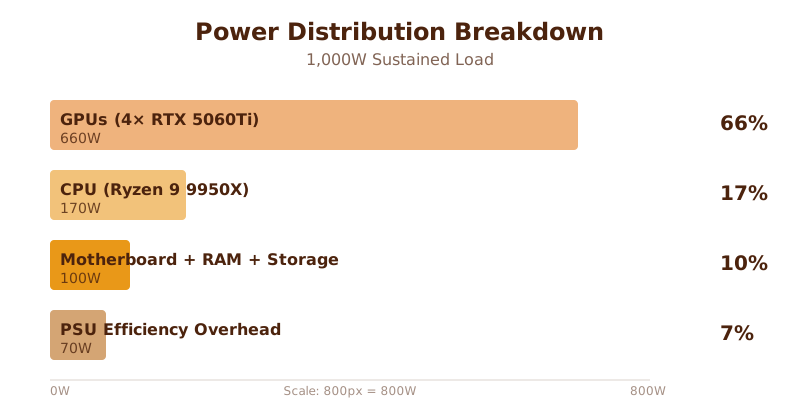
- Power requirement: ~1,000W sustained load (GPUs: 660W + CPU: 170W + overhead: 170W)
- Cooling approach: Open-frame air cooling with natural convection, be quiet! CPU cooler
- Total budget: $5,528 (initial Framework Desktop estimate: $2,500)
- Electrical capacity: Fits within standard 15A circuit at 56% load factor
The confidence shift was dramatic. No more second-guessing GPU choices—workload math justified every decision. Budget accounted for reality. Parts list had verified compatibility.
Lesson 1: Start with Workload, Not Specs
Why This Matters
24GB of VRAM is completely useless if you need 40GB for your target models. 80GB is wasteful if you're only running 7B inference. Specs without context are just expensive numbers on a product page.
Most people approach AI builds like gaming PC builds: pick the fastest GPU in budget, add RAM, done. That works for gaming because games scale reasonably across hardware. AI workloads don't scale—they have hard memory thresholds. Either the model fits, or it doesn't.
VRAM is the king when running AI. A slower GPU with more VRAM will outperform a faster GPU with insufficient memory every time. The model either loads or it doesn't—there's no graceful degradation like dropping graphics settings in games.
The Workload-First Framework
Step 1: List Your Target Models
Be specific. Not "I want to run AI models" but:
- What parameter sizes? (7B, 13B, 30B, 70B, 175B+)
- Inference only or training/fine-tuning?
- Concurrent workloads or sequential?
- What quantization levels are acceptable? (FP16, INT8, INT4)
My list: 7B to 70B parameter models, both inference and fine-tuning, INT8 quantization acceptable for 70B, FP16 preferred for smaller models.
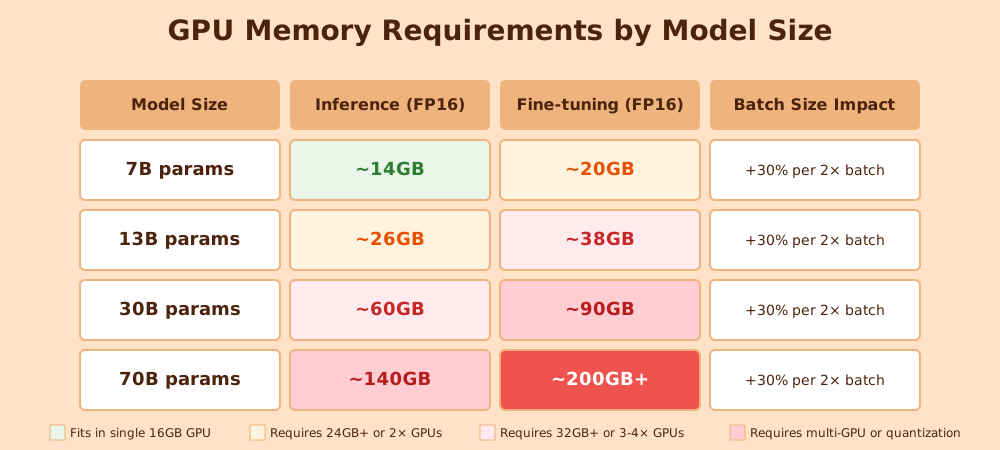
Step 2: Calculate Memory Requirements
Use GPU memory calculators (not guesses). Account for:
- Model weights (parameters × bytes per parameter)
- Activation memory (depends on batch size and sequence length)
- Batch size overhead (larger batches = more memory)
- 20% safety buffer
Step 3: Map to GPU Options
Now—and only now—look at GPUs:
- Consumer cards: 12GB (3060), 16GB (5060TI), 24GB (3090/4090), 48GB (RTX 6000 Ada)
- Professional cards: 40GB (A100), 80GB (A100/H100)
- Used market: Previous-gen cards at 50-60% original cost
Match your memory needs to GPU options. For my coding agent use case: multiple 16GB cards for flexibility, with ability to combine for larger models when needed.
Step 4: Determine Multi-GPU Strategy
Can your workload use multiple GPUs effectively?
- Model parallelism: Split model across GPUs (requires high bandwidth, NVLink helps)
- Data parallelism: Run multiple copies on different data batches (less bandwidth sensitive)
- Pipeline parallelism: Split model into stages across GPUs
My choice: Testing both model and pipeline parallelism. For coding agents, I'm running different specialized models on each GPU (reasoning, code generation, embeddings/RAG). For larger single models, I'll experiment with combining GPUs.
Real Example: My 4-GPU Allocation Strategy
Option 1: Parallel Independent Models
- GPU 1 (RTX 5060Ti 16GB): QwQ 32B Q4 reasoning model (~12GB VRAM)
- GPU 2 (RTX 5060Ti 16GB): Qwen2.5-Coder 14B Q4 for code generation (~8GB)
- GPU 3 (RTX 5060Ti 16GB): Qwen2.5-Coder 7B + embeddings (~5GB total)
- GPU 4 (RTX 5060Ti 16GB): Testing/experimental models
Option 2: Combined for Larger Models
- GPU 1 + GPU 2 (32GB combined): Run larger 30B+ models with quantization
- GPU 3 + GPU 4 (32GB combined): Second large model or parallel testing
Flexibility is the key: Four identical GPUs mean I can reconfigure on the fly. Running four simultaneous smaller models? Possible. Need to test a 40B parameter model across two GPUs? Also possible. This uniform architecture beats the mixed GPU approach for experimentation.
🎯 4-GPU Allocation: Flexible Configurations
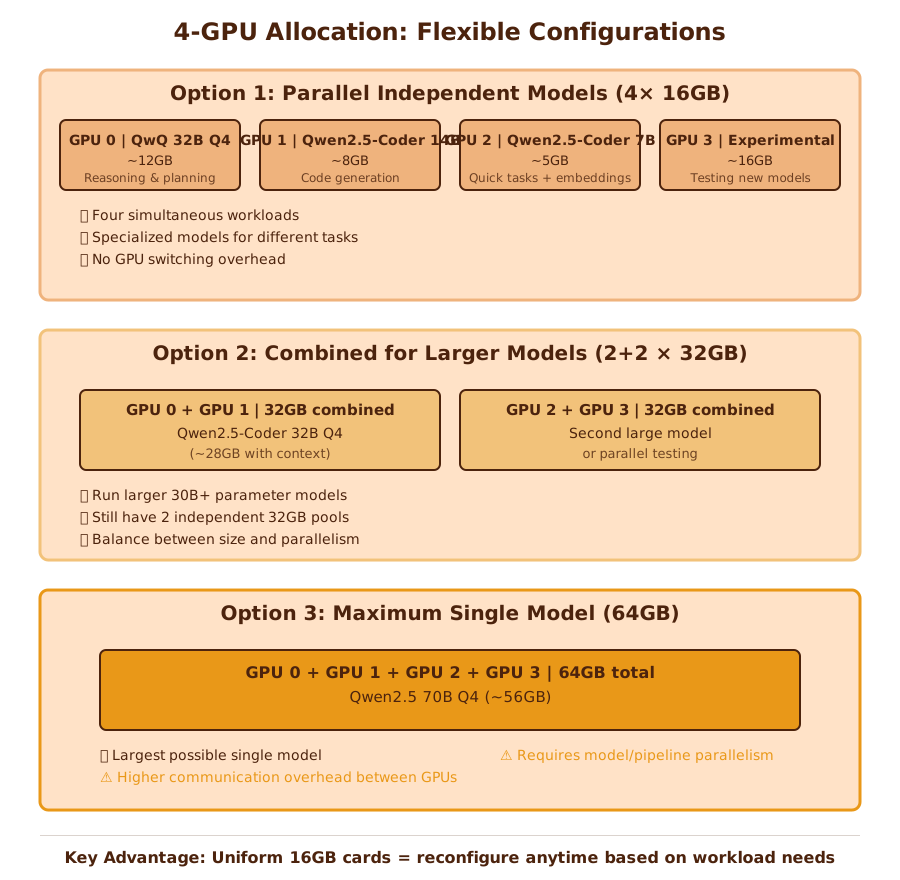
Total: 64GB VRAM, infinite configuration possibilities, uniform management and drivers.
Lesson 2: Budget for Hidden Costs
The 30-50% Rule
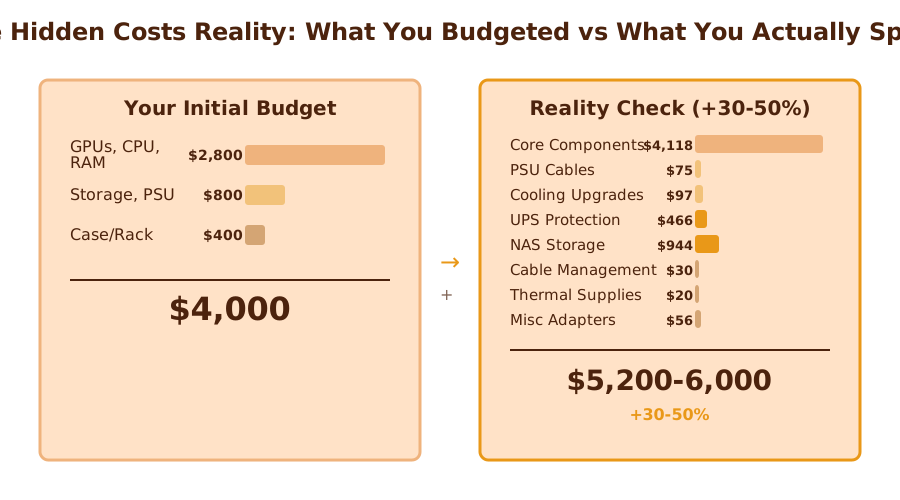
GPU price is just the start. Hidden costs add 30-50% to your budget. I learned this the hard way when my "affordable" build suddenly wasn't.
💰 The Hidden Costs Reality: What You Budgeted vs What You Actually Spent
The Categories You Forget to Budget
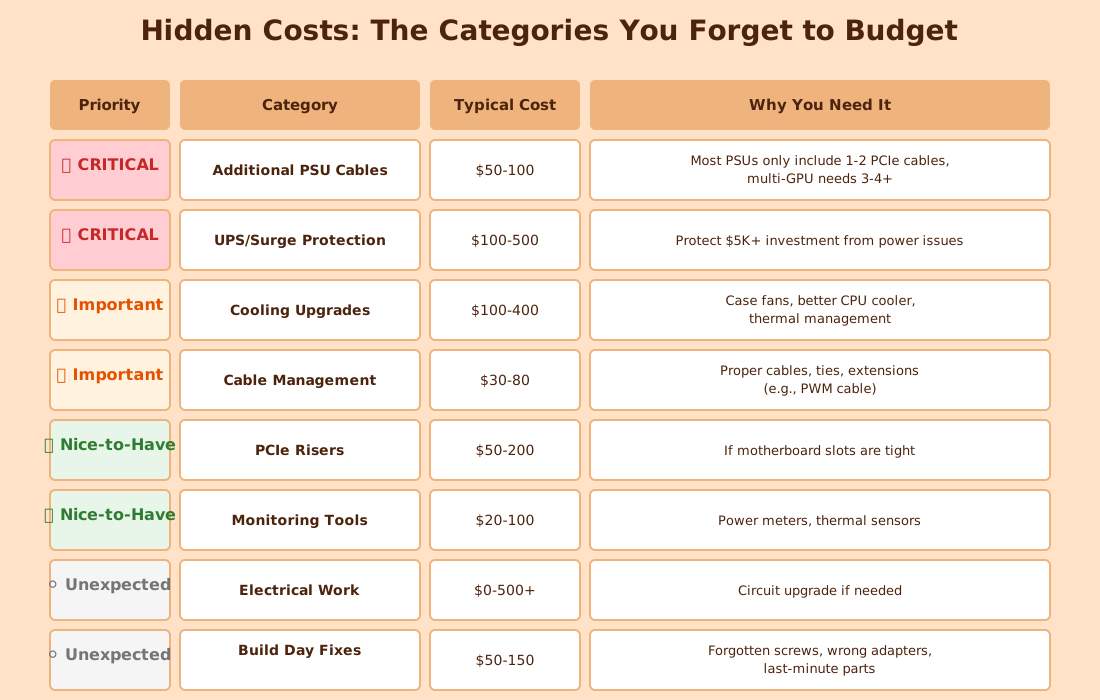
My Actual Hidden Costs:
- ✅ PSU cables + adapter: $50-100 (PSU only included 1 cable!)
- ✅ UPS: $466 (non-negotiable after research)
- ✅ PWM extension: $10-20 (CPU cooler cable too short)
- ✅ NAS infrastructure: $944 (future-proofing storage)
- ✅ Miscellaneous: $56+ (adapters, supplies)
- Total "Hidden": ~$1,526 (28% of final budget)
Comprehensive Budget Breakdown
Visible Costs (what you budgeted for):
- GPUs: $1,844 (33% of total - 4× RTX 5060Ti, all new)
- CPU + Motherboard: $711 (13% - Ryzen 9 9950X + B650)
- RAM: $988 (18% - 128GB DDR5, ouch)
- Storage: $1,251 (23% - NVMe + NAS drives, future-proofed)
- Cooling: $97 (2% - CPU cooler, open-frame saves $$)
- PSU: $121 (2% - 1000W fully modular)
- Rack: $50 (1% - open-frame mining rig)
My Reality:
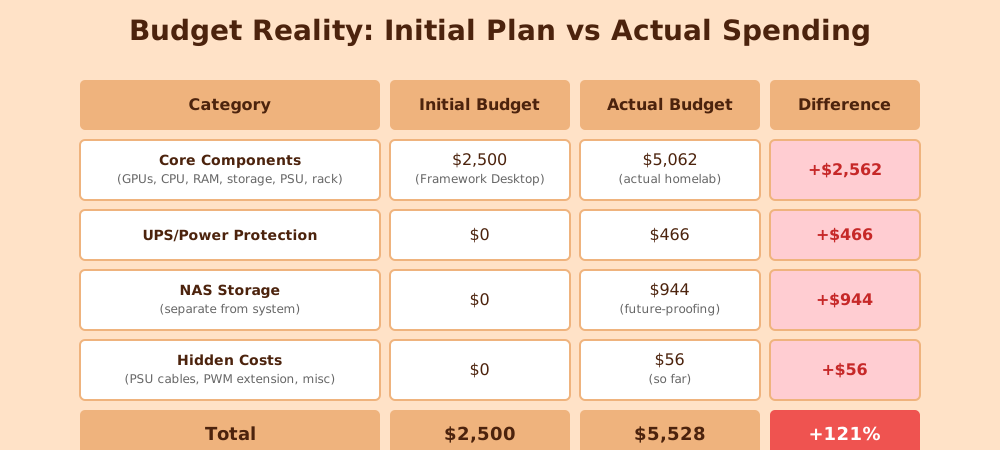
📈 Budget Evolution: The Journey from $2,500 to $5,528

The 121% Increase Breakdown:
- 📦 Core upgrade: Framework → Multi-GPU server (+$2,562)
- 🔋 Infrastructure: UPS protection (+$466)
- 💾 Storage: NAS for datasets (+$944)
- 🔌 Hidden costs: Cables, adapters (+$56)
Lesson Learned: Budget +40% above your initial estimate. You'll use it.
The Pro Tip
Add 40% buffer to your initial estimate. If you don't use it all, great—you have budget for upgrades later. If you need it (you probably will), you're covered instead of scrambling or compromising.
Lesson 3: Power and Cooling Aren't Optional
The Physics You Can't Negotiate
Residential circuits have limits:
- 15A circuit: 1,800W maximum (aim for 80% = 1,440W continuous)
- 20A circuit: 2,400W maximum (aim for 80% = 1,920W continuous)
Multi-GPU builds easily hit 1,500W+ sustained load. And here's the part everyone forgets: heat output equals power consumption. Physics doesn't negotiate.
Calculate Before You Buy
Power Calculation:
- GPU TDP × quantity: 4× RTX 5060Ti (165W each) = 660W
- CPU TDP: Ryzen 9 9950X (170W)
- Motherboard, RAM, Storage: ~100W
- Efficiency overhead: ×1.05 (for 95% efficient PSU at 50% load)
- Total sustained load: ~1,000W
⚡ Power Distribution Breakdown (1,000W Total)
Circuit Load Analysis (15A / 120V Circuit):
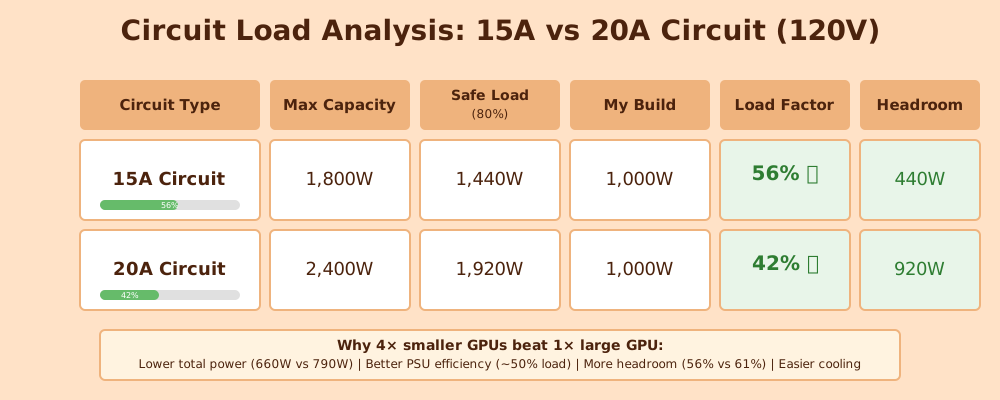
Why 4× smaller GPUs beat 1× large GPU:
- Lower total power: 660W vs 790W (-130W)
- Better PSU efficiency: ~50% load (sweet spot)
- More headroom: 56% vs 61% circuit load
- Easier cooling: Heat distributed across 4 cards
My Reality Check:
My home office runs on a 15A circuit (1,800W max). My actual build: 1,000W sustained load.
The math: It works comfortably.
1,000W on a 15A circuit = 56% load factor. Good headroom for monitors and peripherals. The uniform 4× RTX 5060Ti configuration actually uses less power than the original 3090 + 2× 5060Ti plan, while providing more VRAM. Adding the Goldenmate UPS 1500VA (1,200W capacity) was essential—it protects the investment and provides ~10 minutes runtime during outages for graceful shutdown. After a power surge fried our modem, UPS protection became non-negotiable.
Key insight: Four smaller GPUs consume less power than mixing one large + two small cards. The 1000W PSU runs at ~50% load—right in the sweet spot for 95% efficiency.
Important note from build day: The PSU only included ONE PCIe power cable. For 4 GPUs, I needed additional cables plus a 12V-2x6 to 2× 8-pin adapter. Budget another $50-100 for PSU cables if your modular PSU doesn't include enough.
Cooling Math
1,000W power consumption = 1,000W heat output.
That's like running 0.66 space heaters continuously in your room. In winter, free heating. In summer... AC bills go up.
Cooling strategy:
- Open-frame air cooling: Natural convection with no case restrictions
- be quiet! Dark Rock Elite: Keeps CPU temps under control (~$96)
- No additional case fans needed: Open frame lets GPUs exhaust directly to room air
My approach: All air cooling because (1) open-frame eliminates airflow restrictions, (2) liquid cooling adds complexity and failure points I wanted to avoid for first build, (3) saves $200-400 vs AIO/custom loop. The aaawave 12GPU open-frame chassis ($50) provides excellent airflow—open design eliminates case restrictions and allows natural convection cooling, saving $200-400 on additional cooling hardware. Thermal testing will tell if I need upgrades, but initial calculations suggest air is sufficient for my workload (inference, not sustained 100% training).
Common Planning Pitfalls
Pitfall 1: Picking GPUs Before Understanding Workload
The mistake: Bought based on benchmarks or price, not memory requirements or physical constraints.
Why it fails: 3090 looks great until you realize either (1) 70B models need 40GB+ per GPU, or (2) it's too large to fit in your chassis.
The solution: Do workload math first (Lesson 1). Know your memory needs AND verify physical dimensions before looking at GPU specs.
My mistakes:
- Almost bought Framework Desktop with 128GB unified memory ($2,500) before discovering unified memory is significantly slower than dedicated VRAM for LLM inference.
- Planned RTX 3090 (24GB, $960 used) but it didn't fit in the open-frame chassis—310mm length and 3-slot width conflicted with multi-GPU spacing.
- Final 4× RTX 5060Ti configuration was actually better: more VRAM (64GB vs 56GB), less cost ($1,844 vs $1,882), all new hardware, uniform management.
Pitfall 2: Underestimating Total Costs
The mistake: Focused on GPU price, forgot cables, cooling, electrical work, case, miscellaneous.
Why it fails: "Affordable" GPU + hidden costs = budget blown.
The solution: Budget 30-50% above core components (Lesson 2).
My mistake: Initial Framework Desktop budget: $2,500. Reality after proper research: $5,528 (+121%). The jump came from: dedicated VRAM requirement, UPS protection, NAS storage, RAM price increases, PSU cables, PWM extension, and miscellaneous adapters. Always add 40% buffer.
Pitfall 3: Ignoring Power and Cooling Constraints
The mistake: Planned a build my home electrical couldn't support.
Why it fails: Can't run what you can't power or cool.
The solution: Calculate sustained load early, verify electrical capacity before buying anything (Lesson 3).
My mistake: Calculated power requirements late in planning phase. Lucky: 1,000W (actual 4-GPU build) fits comfortably within 15A circuit at 56% load. The final configuration uses less power than initially planned while delivering more VRAM. Check power FIRST, not last—and verify your PSU includes enough modular cables for your GPU count.
Pitfall 4: Trusting Generic Advice
The mistake: "Buy what works for others" doesn't account for your use case.
Why it fails: Someone running Stable Diffusion has different needs than someone fine-tuning LLMs.
The solution: Understand WHY someone chose their components. Apply reasoning to your situation, don't copy configurations blindly.
Learning: r/LocalLLaMA was incredibly helpful, but my workload wasn't everyone else's. What worked for inference-only setups didn't work for my fine-tuning plans.
Pitfall 5: Skipping Compatibility Research
The mistake: Components that look good individually don't always work together.
Why it fails: PCIe lane limits, motherboard slot spacing, case clearance issues, PSU connector incompatibilities, BIOS version mismatches.
The solution: Verify everything before buying:
- BIOS compatibility: Check if motherboard BIOS supports your CPU generation (critical for new Zen 5/Intel 14th gen)
- Physical dimensions: GPU length vs chassis clearance, cooler height vs RAM clearance
- PCIe lanes - TOTAL COUNT: CPU must support your GPU count (Ryzen 9 9950X: 28 lanes = seems perfect for 4 GPUs)
- PCIe lanes - PER-SLOT DISTRIBUTION: THIS IS CRITICAL! Don't just count total lanes—check how they're distributed across slots. My B650 board: Slot 1 gets x16, but slots 2-4 only get x1 each. That's 32 GB/s for GPU 1 vs 2 GB/s for GPUs 2-4 (16x difference!)
- Motherboard slot spacing: Multi-GPU needs physical space between cards
- PSU cables: Count included modular cables vs needed (I needed 4 PCIe cables, PSU included 1)
- Power connectors: Verify PSU has right connector types (12V-2x6 adapters may be needed)
My mistakes: RTX 3090 didn't fit in chassis (didn't check physical clearance), BIOS didn't support Zen 5 (didn't check version requirements), PSU lacked enough PCIe cables (didn't verify included cables), PCIe lane distribution disaster (checked total lanes, not per-slot allocation).
Why this matters for your workload:
- Independent models per GPU (my use case): Acceptable—slower model loading on GPUs 2-4 (30-60 seconds vs 2-5 seconds), but inference speed unaffected once loaded
- Multi-GPU model parallelism (single large model split across GPUs): Dealbreaker—x1 slots bottleneck GPU communication, making it slower than using GPU 1 alone
- Distributed training/fine-tuning: Severe bottleneck—gradient synchronization limited to 2 GB/s on GPUs 2-4
The fix: For true multi-GPU parallelism, you need x8 minimum per GPU. Look for workstation boards (TRX50, WRX90 with Threadripper) or high-end desktop boards with proper bifurcation support (some X670E boards can do x8/x8/x4/x4).
Tools that helped: PCPartPicker for basic compatibility, manufacturer specs for details, community build logs for real-world validation, motherboard CPU support lists, motherboard manual for exact PCIe lane distribution.
Pitfall 6: No Buffer in Budget or Timeline
The mistake: Planned for perfect execution with zero contingency.
Why it fails: You will forget something. Unexpected issues will arise.
The solution: Add 20% time buffer and 30-40% budget buffer.
Reality: RAM prices spiked during my planning (+$300-400 vs historical average). The unified memory discovery forced complete architecture pivot. Power outage fried modem, adding UPS to must-have list. RTX 3090 didn't fit chassis on build day. BIOS update required 1 hour troubleshooting. PSU cables needed ordering. Unexpected issues WILL happen—buffer protects you.
What's Next: The Build Begins
Planning an AI homelab backwards (specs-first) wastes money and leads to incompatible builds. The workload-first approach—defining what you'll actually run, calculating real memory requirements, budgeting for hidden costs, and verifying power/cooling capacity—saves thousands and prevents rebuilds.
I learned this through wrong turns: underestimating costs by 121%, almost buying a system with unified memory (slow for AI), discovering the RTX 3090 didn't physically fit, hitting BIOS compatibility issues, running short on PSU cables, and the big one—discovering my motherboard gives GPU 1 full x16 bandwidth but GPUs 2-4 only get x1 each. You can skip those mistakes.
My final build: 4× RTX 5060Ti 16GB (64GB VRAM), AMD Ryzen 9 9950X, 128GB DDR5, $5,528 total. Components selected with justified decisions. Budget accounts for reality (plus 40% buffer). Electrical capacity verified at 56% of circuit capacity.
Current status: Planning complete! The parts are ordered and the build is underway. The homelab infrastructure is designed for 1,000W sustained load, fitting comfortably within a 15A circuit at 56% capacity.
Part 3 will cover:
- Physical assembly challenges and solutions
- BIOS compatibility issue resolution (Q-Flash Plus)
- CPU cooler RAM clearance workaround
- First boot and testing
- Dual-GPU passthrough configuration
- What actually happened on build day (vs. what was planned)
Part 4 will cover:
- Software stack setup (drivers, CUDA, frameworks)
- First training run and performance validation
- Multi-GPU configuration and optimization
- What I'd change for a second build
Planning Your Own AI Homelab?
Share your target workload and initial component list in the comments. I'll point out potential pitfalls I learned the hard way. The Duck Kingdom values planning over impulsivity—your future self will thank you. 👑
For complete technical documentation, planning spreadsheets, and component compatibility matrices, see my ArkNode AI Repository.
← Back to Part 1: My $2,500 AI Homelab Mistake
Word count: ~3,100 words (estimated)
Part: 2 of 4 in AI Homelab Build Series
Previous: Part 1 - My $2,500 AI Homelab Mistake
Next: Part 3 - Build Day Chronicles (coming soon)

DuckKingOri
Korean-American firmware engineer in LA. Building AI homelabs, exploring local AI applications, and sharing real experiences with travel, tech, and investing.
Learn more →